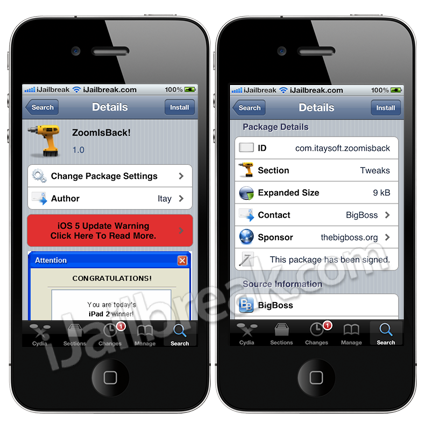
Do you miss the slide-to-zoom function, that was present in the iOS 4 Camera.app, after updating to the iOS 5 firmware? If you do, then you will be glad to know with the ZoomIsBack! Cydia tweak you can bring back this functionality while running the iOS 5 firmware.
After installing the ZoomIsBack! Cydia tweak you must simply double tap the screen while in the Camera.app and the slide-to-zoom function will return.
Note: This tweak does not add any icons to your SpringBoard, and has no configurable options.
You can find the ZoomIsBack! tweak through the BigBoss repo for FREE.
For google– How to I zoom on camera app on ios5, where is the slider on camera ios5, how do i get my zoom slider back?
]]>Seems the vibrate motor is held in place with a piece of tape and if that comes loose the vibrate stops working. If you tap the top of the phone you will notice the vib will start working. Does not seem like a long term fix and would probably have to go fight with apple to get a new phone. After just spending 2 days finally getting my phone back to working not sure I want to restore to original and go argue with apple.
So for google search– My iphone4 wont vibrate. My iphone stopped vibrating. No vibrate on iphone. How to get my iphone to vibrate again?
]]>UPDATE: I have since restored 3 times trying to get a working phone. Tried as new and then restored a backup and then new phone with no data and then I couldnt even edit my contacts so restore 3 is going off now to restore to last working version.
UPDATE: OK so I used a backup of iphone form itunes and then manually re-added in cydia the apps I wanted and runs smoooooooth and great. I think once the phone is messed up it is the cydia files that are corrupt and uploading fresh files fixes the messed up files.
]]>When you have synced your iPhone and noticed that “other files” have taken up a lot of storage space on the iPhone, un-tick the “sync music” alternative in iTunes before un-connecting your iPhone.
Step 2: Install DiskAid software on computer/mac
DiskAid is a neat little software that allows you transfer files to your iPhone, iPod Touch, or iPad, treating it as a USB drive. They offer a free trial of the software so no need to purchase it first time you have to use it at least.
Make sure your iPhone is connected with the USB when you open up DiskAid. When the program is running, at the bottom left corner it says “DiskAid folder”, click on the drop down list and choose “media folders”.
Step 3: Go into iTunes Control folder and then the Music folder
In DiskAid you will see an overview of all the folders and files on your iPhone. Go to the iTunes Control Folder and then the subfolder called Music. Under the Music folder you will likely see a lot of subfolders starting with “f”.
Step 4: Delete/remove all subfolders in Music
Delete all the subfolders under the Music folder. They include the files that are hogging your iPhone memory under “other files”.
Step 5: Open iTunes and sync your iPhone
With “music sync” still turned off in iTunes, sync your iPhone. This will remove all music files from your iPhone, but keep all other content. Don’t worry about this though, as in the next steps you will sync the music back onto your iPhone.
Step 6: Unplug iPhone and reboot it
Once the iPhone has finished syncing, unplug it and perform a reboot. The reboot is done by holding down the “power down” button at the top right at the same times as holding down the control button. Hold both of them until the iPhone has switched off and the Apple logo appears on the screen before releasing both buttons. This action will reboot your iPhone.
Step 7: Reconnect your iPhone to iTunes and recheck “sync music”
This will put your music back onto the iPhone, and you should not see any of the “other files” taking up any of the iPhone memory. Once the sync is complete your iPhone should be all sorted again.
If you still see “other files” taking up memory on your iPhone you have likely done something wrong or left out subfolders in step 4.
]]>I try to add tips and tricks I find useful to this site since sometimes its hard to find these things online. SO, for google I add the following lines.
Does you home button on your iphone take too long to go? When you pust the home button noting happens for a second? My home button is slow to activate. How can I fix my iphone home button? My iphone4 home button is really slow. My home button takes forever to activate app.
WELL, here is how you fix it.
Step 1: Navigate to, and launch one of the stock applications on your iPhone. If you don’t already know, the stock apps are things like weather, YouTube, stocks, settings etc (any that come as part of iOS).
Step 2: When the app is launched, press and hold the Power button located at the top of the device until the ‘Slide to power off’ appears.
Step 3: Press and hold the iPhone home button. Keep the button depressed until the Slide to power off slider disappears and the application quits back to Springboard.
Step 4: Your home button is now re-calibrated and should be more responsive for you.
]]>A step by step guide from the beginning here, shall we…
]]>1)Make sure you have OpenSSH installed on your iDevice from Cydia. If not search for it, download it and install.
2)Download an SSH protocol like WinSCP (Windows) or OpenSSH (Mac) to do this with your computer
(Or you can download iFile and look for it on the iDevice, I prefer to ssh into it)
3)For detailed instructions on how to SSH into your iDevice go here : http://www.iphone4jailbreak.org/how-to-ssh-into-iphone-4-using-winscp.html
4)Once you are connected to your phone, go all the way up to the folder “var” then select “mobile” then “media” and then “applicationarchives”
****If you do not see applicationarchives” then you do not have this problem and I would go explore every directory on the phone and right click the folder, hit properties and calculate to see if there is any folders that are storing more than a usual amount of data (like over a gig) and is not your apps, music, or photos. Then you will find the culprit. Having a ton of cydia stuff can be an issue too. You can delete those in the packages section****
If you do see it, then YAY!!! Continue to step 5
5)Delete everything in this folder!!!
6)Eject iDevice from iTunes and plug it back in and now check out all that free space you have!!!
The hack is based on the fact that iTunes differentiates a song file and a ringtone by the file extension. While we all know that the song file extension was AAC; the file extension for ringtones is “M4R”. All you need to do is take an m4a file, which is DRM free and not more than 30 seconds, rename it to m4r and add it to iTunes.
You can check out this step by step guide to create free custom ringtones for your iPhone using iTunes:
I will post things that I couldnt find on the internet hoping that google will lead you here so you dont wanna shoot yourself when you cant find help anywhere.
I have found some great sites out there that you can use and almost always can get help from the forum members.
Check here
http://modmyi.com/forums/
]]>